Native eCommerce
Add or Remove Native Store
Add or Remove Native Store
Adding a native store is quick and easy. If you are on a mock store, you can remove native store.
Add Native Store
If you have not created a site yet, you can select a native store template. Or, you can add a store to any existing site.
To add a store:
-
In the side panel, click More, then select Store.
-
Click Get Started.
-
Selectnative store and click Add store to site.
Check out the following video for instructions on how to add a store and tour of the various store sections:
<!-- iframe instead of embed for d:videodata -->Delete Mock Native Store
You can only delete mock stores.
To delete a mock store:
-
In the side panel, click Store, then click Store Management.
-
Click the three horizontal dots (
 ) icon next to Store Management and select Delete Store.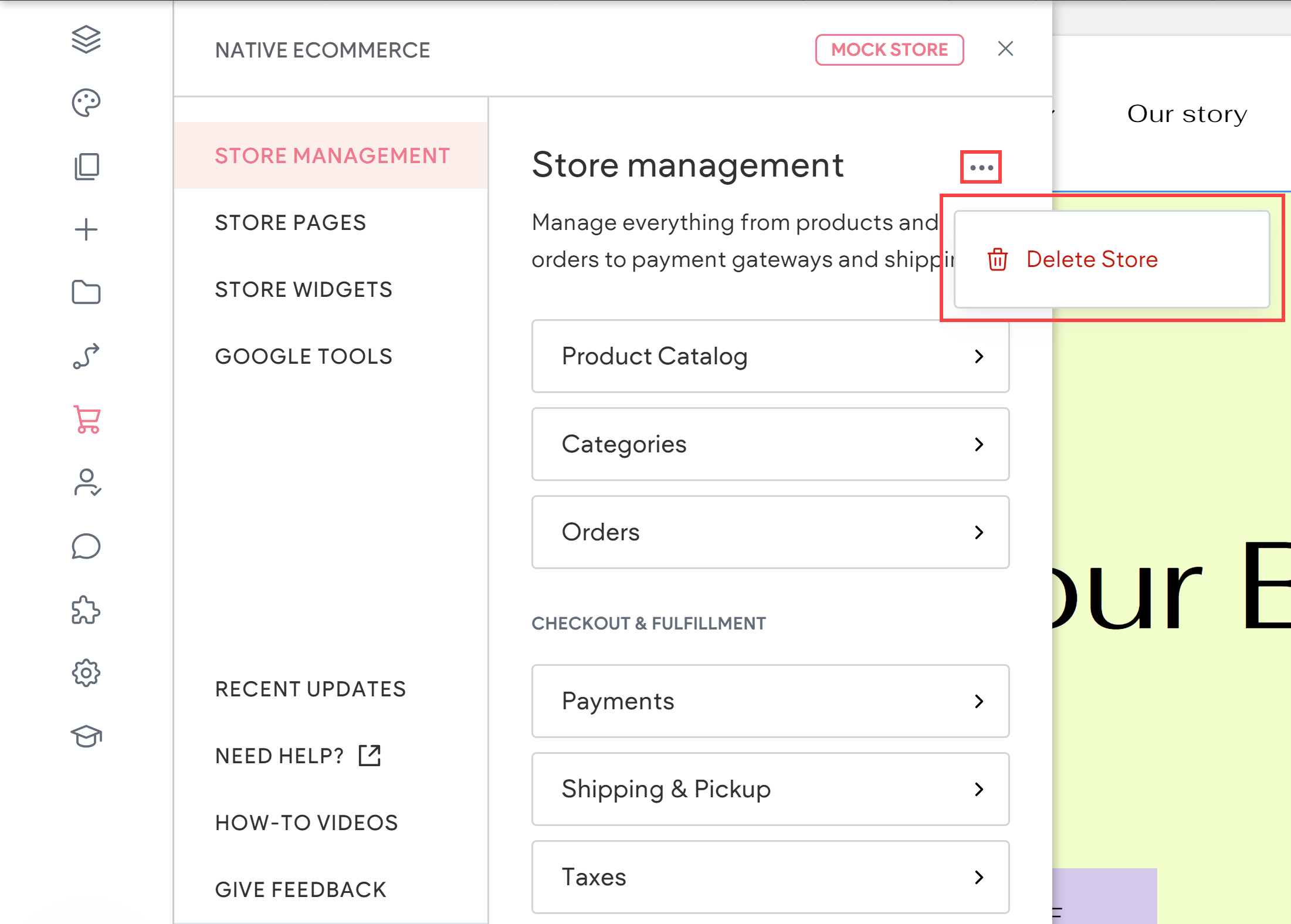
-
To confirm, click Delete Store. After you remove the mock store, complete the following:
-
Delete the store page from the site.
-
Delete all store widgets (Product Gallery, Shopping Cart, Store Search, etc)
-
-
Republish the site to make the changes live.