Widgets
Link Picker
Link Picker
Add or modify links across various elements or widgets. You can link to internal resources like pages or anchor points, external URLs, or create click-to-action links. Links can be added to most elements, including text, images, buttons, flex containers (Editor 2.0 only), and more, with similar options available for each. These options may vary depending on your site’s add-ons, such as eCommerce or Membership.
How to access the link picker will be dependent on the widget and the editor version.
For text widgets, if text is able to be linked, click on the icon that looks like a link ( ; may look different depending on the widget).
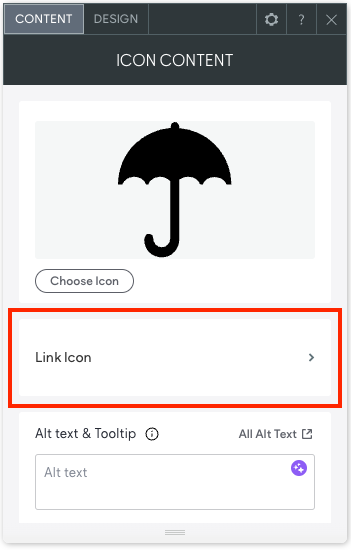
For most widgets, the link option can be found in the content tab or management area. In Flex mode and Editor 2.0, some widgets, like the Image widget, will have the management area labeled as "Replace." For example, to access the management area for an image, click "Replace Image."
To access the content editor, right click the widget and select Edit Content. Or, if you are in flex mode or Editor 2.0, the option to access the content editor is available in the floating menu. Click the element to open the floating menu, then click the option for the content editor.
Example link section in the Content tab or management area:
Link Picker for Flex Containers (Editor 2.0)
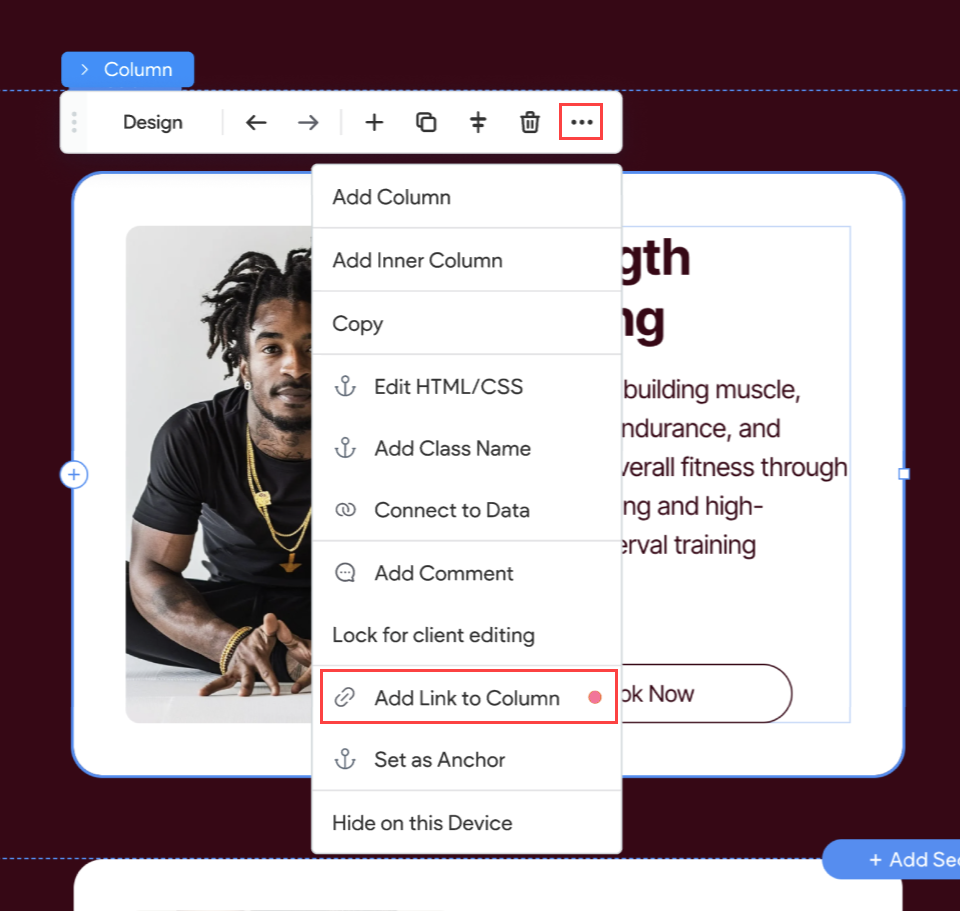
For flex containers (column, inner column, advanced grid), you can access the Link Picker from the floating bar. To add a link to a container, click the container and click the three horizontal dots on the floating bar, then select Add Link. Note that nested elements inside the container can still have their own links. For example, the container can be linked to a Contact Us page while the button inside the container can be linked to an email address.
Note
Currently, linking to a flex container does not contribute to SEO rankings. However, we are actively working on enhancing its SEO significance in the future. In the meantime, we recommend including a CTA button within the container that links to the same destination. This ensures better SEO visibility while maintaining the intended user experience.
Link Picker Options
Some of the options noted in the table will be dependent on your site’s add-ons, such as eCommerce or membership. They may also vary depending on the widget.
Option Name
Description and Notes
Existing site page
Send the visitor to an existing page on your site.
Store page
Prompt the visitor's device to open the store login, shopping cart, add a product to the shopping cart (native store), or navigate to a product page.
This will only show if the site has a store.
Note that if you selected to add a product to the shopping cart, the linked product must have an 'Active' status, have available inventory, contain no options or variations, and cannot be a subscription product.
Web address
Send the visitor to a specific URL.
The following attributes are available:
-
Open in new window.
-
Set as "no follow". Ask search engines to not associate your site with or crawl the linked page from your site.
-
Set as sponsored. This lets search engines know the link is the result of an advertisement or paid placement.
-
Set as user Generated Content (UGC). This informs search engines of links created by users (e.g., a link someone posted in a comment), that aren’t necessarily reliable.
Popup
Open a popup. Choose from popups located in Pages & Popups or create a new popup.
Back to Top
Takes the user to the top of the page. This is only available for button and icon widgets.
Scroll to bottom
Editor 2.0 only
Available for buttons and icons and takes the user to the bottom of the footer.
Anchor
Send the visitor to an anchor on any page on the site. This includes the default bottom and top of page anchors.
Membership plan checkout
Send the visitor to the checkout page for a Membership plan. This will only show if the site has added the Membership feature.
This option is only available with the button widget.
Blog post
Send the visitor to a specific blog post or anchor within a blog post.
This option will only show if the site has a blog.
Email address
Prompt the visitor's device to open an email client with a specific email address.
Click to call
Prompt the visitor's device to call a specific phone number.
File for download
Prompt the visitor's device to download a specific file.